
Accessible Vue Apps
Build more accessible Vue apps with practical guidance on semantic HTML, ARIA bindings, focus management, accessible routing, keyboard navigation, and common mistakes to avoid.

Reza Baar
March 31, 2026
Accessibility isn't a feature you bolt on at the end. It's a set of decisions you make while building. The good news is that Vue makes most of these decisions pretty straightforward if you know what to reach for.
👇 By the end of this post, you'll know:
- How to manage focus in Vue's reactive rendering model
- Which ARIA attributes actually matter and how to bind them
- How to make Vue Router navigations accessible
- Common accessibility mistakes in Vue apps and how to avoid them
Semantic HTML First
This isn't Vue-specific but it's where most accessibility issues come from. So let’s start from here. If you're using <div> and <span> for everything and then adding ARIA roles to make them behave like buttons and links, you're doing it the hard way!
Use the right element:
<button>for actions (please no<div @click>)<a>for navigation<nav>,<main>,<aside>,<header>,<footer>for landmarks<label>linked to form inputs (always)
Vue's <template> and fragments don't add extra DOM nodes, so there's no excuse for wrapper-div soup.
Dynamic ARIA Bindings
Vue's reactive binding system makes ARIA attributes easy to keep in sync with state. Bind them dynamically instead of hardcoding.
<script setup>
import { ref } from 'vue'

const isExpanded = ref(false)
</script>

<template>
  <button
    :aria-expanded="isExpanded"
    @click="isExpanded = !isExpanded"
  >
    Toggle details
  </button>
  <div v-show="isExpanded" role="region">
    Content here
  </div>
</template>
Key ARIA patterns in Vue:
:aria-expandedfor disclosure widgets (accordions, dropdowns):aria-selectedfor tabs and selection UIs:aria-live="polite"on regions that update asynchronously (toast notifications, loading states):aria-disabledalongside:disabledon form elementsrole="alert"for error messages that need immediate announcement
No manual DOM manipulation needed, the reactive system keeps these in sync for free.
Focus Management
This is where Vue apps break accessibility the most. When you conditionally render content with v-if or navigate between views, focus can get lost. A screen reader user ends up at the top of the page with no idea what changed.
Template refs for focus control
<script setup>
import { ref, nextTick } from 'vue'

const showModal = ref(false)
const modalRef = ref(null)

async function openModal() {
  showModal.value = true
  await nextTick() // these lines are the interesting parts
  modalRef.value?.focus()
}
</script>

<template>
  <button @click="openModal">Open</button>
  <div v-if="showModal" ref="modalRef" tabindex="-1" role="dialog" aria-modal="true">
    Modal content
    <button @click="showModal = false">Close</button>
  </div>
</template>
Why nextTick matters: Vue batches DOM updates. After setting showModal to true, the element doesn't exist in the DOM yet. nextTick waits for the DOM update to complete before calling .focus().
Focus rules to follow:
- When a modal opens, move focus into it
- When a modal closes, return focus to the trigger element
- When content is removed with
v-if, make sure focus doesn't get orphaned - Use
tabindex="-1"on non-interactive elements that need programmatic focus (like modal containers or heading regions)
Accessible Routing
Single page applications have a fundamental accessibility problem: route changes don't trigger a page load, so screen readers don't announce the new content.
Announce route changes
<script setup>
import { ref, watch } from 'vue'
import { useRoute } from 'vue-router'

const route = useRoute()
const announcement = ref('')

watch(() => route.path, () => {
  announcement.value = `Navigated to ${route.meta.title || route.name}`
})
</script>

<template>
  <div aria-live="assertive" class="sr-only">
    {{ announcement }}
  </div>
  <RouterView />
</template>
The sr-only class (visually hidden, still readable by screen readers) is something you'll want in your global styles:
.sr-only {
  position: absolute;
  width: 1px;
  height: 1px;
  padding: 0;
  margin: -1px;
  overflow: hidden;
  clip: rect(0, 0, 0, 0);
  white-space: nowrap;
  border-width: 0;
}
Move focus on navigation
After a route change, move focus to the main content area or the page heading. Otherwise screen reader users start from the top of the page every time.
router.afterEach(async () => {
  await nextTick()
  const heading = document.querySelector('h1')
  heading?.focus()
})
Make sure your <h1> has tabindex="-1" so it can receive programmatic focus without appearing in the tab order.
Keyboard Navigation
If it works with a mouse, it needs to work with a keyboard. Vue's event modifiers make this cleaner.
<template>
  <div
    role="listbox"
    @keydown.up.prevent="selectPrevious"
    @keydown.down.prevent="selectNext"
    @keydown.enter="confirmSelection"
    @keydown.escape="close"
  >
    <div
      v-for="option in options"
      :key="option.id"
      role="option"
      :aria-selected="option.id === selectedId"
      @click="select(option)"
    >
      {{ option.label }}
    </div>
  </div>
</template>
Things to check:
- Can you reach every interactive element with Tab?
- Can you activate buttons with Enter and Space?
- Can you close overlays with Escape?
- Is the focus order logical (follows DOM order)?
- Are focus traps in place for modals? (focus shouldn't escape the modal while it's open)
Common Mistakes
Missing labels on inputs: Every <input> needs a <label>. If a visible label doesn't fit the design, use aria-label or aria-labelledby.
<input type="search" aria-label="Search posts" v-model="query" />
Using v-html without caution: Injected HTML skips Vue's template compilation. Any interactive elements inside won't have proper event handlers or ARIA bindings. If you must use v-html, ensure the content is sanitized and accessible.
Forgetting alt on images: If the image is decorative, use alt="" (empty string, not missing). If it conveys information, describe it.
Relying only on color: Error states, status indicators, and required fields need more than just a red border. Add icons, text, or ARIA attributes.
Not testing with a keyboard: Tab through your app regularly. If you can't complete a core flow without a mouse, it's broken for keyboard and screen reader users.
Wrapping Up
Most accessibility work in Vue isn't about special APIs or libraries. It's about using semantic HTML, keeping ARIA attributes in sync with reactive state, and managing focus when the DOM changes. Vue's reactivity system, template refs, and nextTick give you everything you need. The rest is discipline.
More certificates.dev articles
Get the latest news and updates on developer certifications. Content is updated regularly, so please make sure to bookmark this page or sign up to get the latest content directly in your inbox.
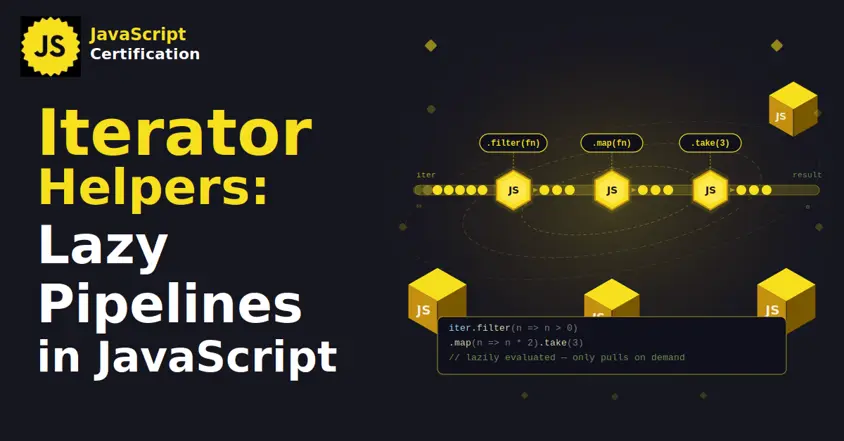
Iterator Helpers: Lazy Pipelines in JavaScript
ES2025 added map, filter, take and drop to iterators. Learn how lazy pipelines skip intermediate arrays, handle infinite sequences, and where they do not help.

Martin Ferret
Oct 6, 2026

Debugging Suspense with the React Suspense Panel
The Suspense panel in React Developer Tools shows which boundary suspended, what it was waiting for, and the order your page revealed its content.

Aurora Scharff
Oct 1, 2026
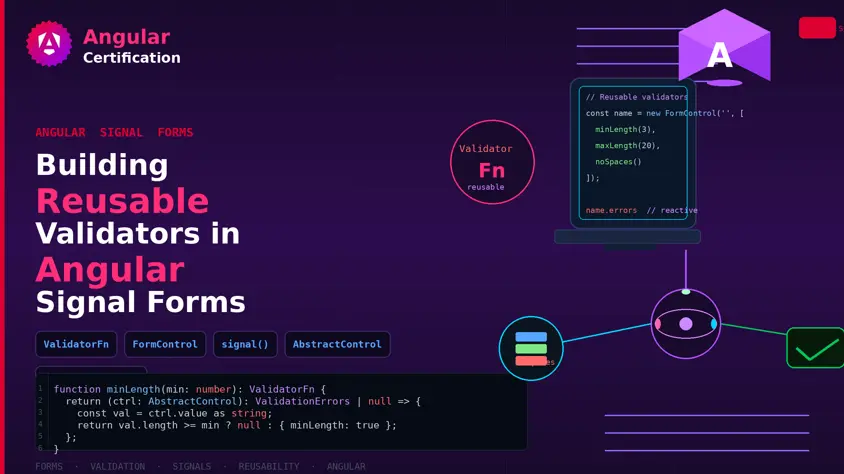
Building Reusable Validators in Angular Signal Forms
Learn how to create reusable custom validators with Angular Signal Forms, with practical examples for building flexible and maintainable form validation.
Alain Chautard
Sep 29, 2026