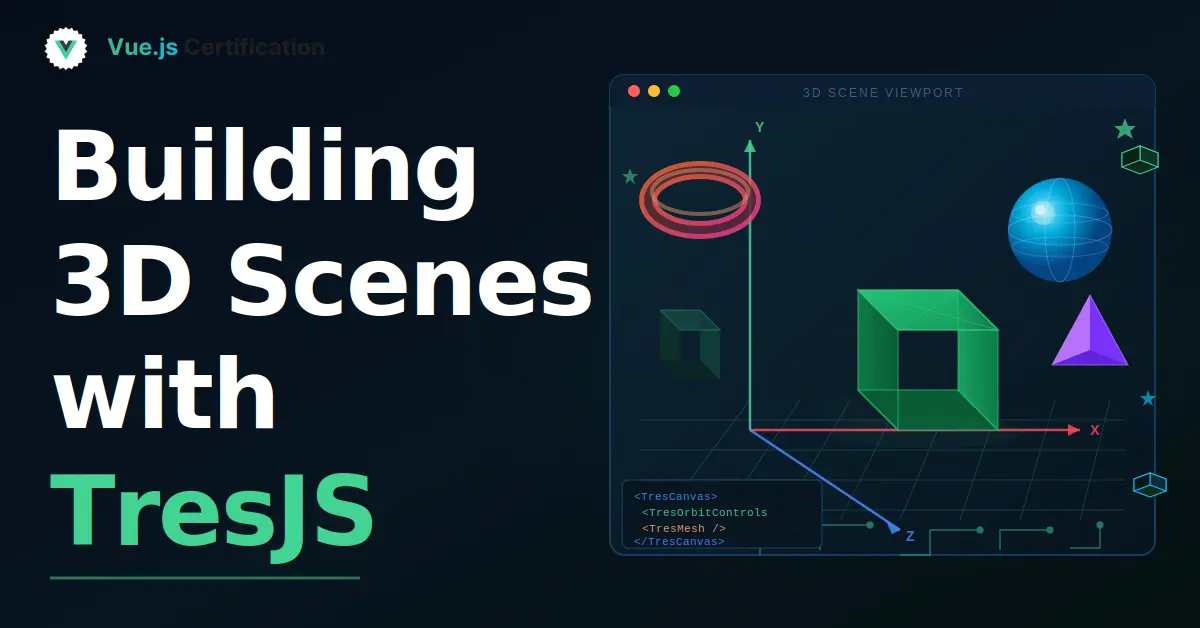
Building 3D Scenes with TresJS
A hands-on walkthrough of TresJS, the Vue custom renderer for Three.js. From a blank canvas to a reactive 3D scene.

Reza Baar
June 10, 2026
Building 3D Scenes in Vue with TresJS
TresJS is a Vue custom renderer that lets you build Three.js scenes using Vue components and composables. Instead of writing imperative Three.js code, you declare your scene in the template the same way you'd build any other Vue UI. In this post, we'll go from a blank canvas to a scene with geometry, materials, lighting, controls, and reactive state.
Setting Up
Install the core package and Three.js:
npm install @tresjs/core three
TresJS also has a companion library called Cientos that provides ready-made abstractions (orbit controls, loaders, helpers). We'll use it later:
npm install @tresjs/cientos
The Canvas
Every TresJS scene starts with <TresCanvas>. This component sets up the WebGL renderer, creates a scene, and starts the render loop.
<!-- App.vue -->
<script setup lang="ts">
import { TresCanvas } from '@tresjs/core';
</script>

<template>
  <TresCanvas clear-color="#1a1a2e" window-size>
    <TresPerspectiveCamera :position="[0, 2, 5]" />
  </TresCanvas>
</template>
clear-color sets the background. window-size makes the canvas fill the viewport. The TresPerspectiveCamera is positioned slightly above and back from the origin so we can see what we're building.
That's it for the boilerplate. Everything else we add goes inside <TresCanvas> as child components.
Adding a Mesh
A mesh in Three.js is a combination of geometry (the shape) and material (the appearance). In TresJS, you compose them as nested components:
<template>
  <TresCanvas clear-color="#1a1a2e" window-size>
    <TresPerspectiveCamera :position="[0, 2, 5]" />

    <TresMesh>
      <TresBoxGeometry :args="[1, 1, 1]" />
      <TresMeshStandardMaterial color="#4fc3f7" />
    </TresMesh>
  </TresCanvas>
</template>
TresBoxGeometry creates a 1x1x1 cube. The :args prop maps directly to the Three.js constructor arguments. TresMeshStandardMaterial is a physically-based material that responds to light.
You won't see much yet because we haven't added any lights. The cube will appear black.
Adding Lights
Let's add an ambient light (fills the whole scene softly) and a directional light (simulates sunlight from one direction):
<template>
  <TresCanvas clear-color="#1a1a2e" window-size>
    <TresPerspectiveCamera :position="[0, 2, 5]" />

    <TresAmbientLight :intensity="0.4" />
    <TresDirectionalLight :position="[3, 5, 2]" :intensity="1.2" />

    <TresMesh>
      <TresBoxGeometry :args="[1, 1, 1]" />
      <TresMeshStandardMaterial color="#4fc3f7" />
    </TresMesh>
  </TresCanvas>
</template>
Now the cube is visible with shading. The directional light creates shadows on the faces based on its position.
How Component Names Work
You'll notice we didn't import TresMesh, TresBoxGeometry, or any of the other scene components. TresJS auto-generates a Vue component for every Three.js class. The naming convention is:
- Take the Three.js class name (e.g.,
BoxGeometry,MeshStandardMaterial,DirectionalLight) - Add the
Tresprefix - Use PascalCase
So THREE.SphereGeometry becomes <TresSphereGeometry>, THREE.PointLight becomes <TresPointLight>, and so on. This works for every class in the Three.js library.
Orbit Controls
To rotate around the scene with the mouse, we need orbit controls. This comes from the Cientos package:
<script setup lang="ts">
import { TresCanvas } from '@tresjs/core';
import { OrbitControls } from '@tresjs/cientos';
</script>

<template>
  <TresCanvas clear-color="#1a1a2e" window-size>
    <TresPerspectiveCamera :position="[0, 2, 5]" />
    <OrbitControls />

    <TresAmbientLight :intensity="0.4" />
    <TresDirectionalLight :position="[3, 5, 2]" :intensity="1.2" />

    <TresMesh>
      <TresBoxGeometry :args="[1, 1, 1]" />
      <TresMeshStandardMaterial color="#4fc3f7" />
    </TresMesh>
  </TresCanvas>
</template>
Now you can click and drag to rotate, scroll to zoom, and right-click to pan.
Reactive Props
This is where TresJS really shines. Because it's a Vue renderer, every prop is reactive. If you bind a ref to a position, color, or scale, the 3D scene updates automatically.
Let's make the cube's color and scale reactive:
<script setup lang="ts">
import { TresCanvas } from '@tresjs/core';
import { OrbitControls } from '@tresjs/cientos';

const cubeColor = ref('#4fc3f7');
const cubeScale = ref(1);
</script>

<template>
  <div>
    <div class="controls">
      <input type="color" v-model="cubeColor" />
      <input type="range" v-model.number="cubeScale" min="0.5" max="3" step="0.1" />
    </div>

    <TresCanvas clear-color="#1a1a2e" window-size>
      <TresPerspectiveCamera :position="[0, 2, 5]" />
      <OrbitControls />

      <TresAmbientLight :intensity="0.4" />
      <TresDirectionalLight :position="[3, 5, 2]" :intensity="1.2" />

      <TresMesh :scale="cubeScale">
        <TresBoxGeometry :args="[1, 1, 1]" />
        <TresMeshStandardMaterial :color="cubeColor" />
      </TresMesh>
    </TresCanvas>
  </div>
</template>
Change the color picker or drag the slider, and the cube updates in real time. No imperative Three.js calls, no manual render triggers. Vue's reactivity system drives the 3D scene the same way it drives the DOM.
Animation with useRenderLoop
For continuous animation (like rotating the cube), TresJS provides useRenderLoop. This composable gives you a callback that fires on every frame:
<script setup lang="ts">
import { TresCanvas, useRenderLoop } from '@tresjs/core';
import { OrbitControls } from '@tresjs/cientos';
import type { Mesh } from 'three';

const cubeRef = ref<Mesh | null>(null);

const { onLoop } = useRenderLoop();

onLoop(({ delta }) => {
  if (cubeRef.value) {
    cubeRef.value.rotation.y += delta * 0.5;
    cubeRef.value.rotation.x += delta * 0.2;
  }
});
</script>

<template>
  <TresCanvas clear-color="#1a1a2e" window-size>
    <TresPerspectiveCamera :position="[0, 2, 5]" />
    <OrbitControls />

    <TresAmbientLight :intensity="0.4" />
    <TresDirectionalLight :position="[3, 5, 2]" :intensity="1.2" />

    <TresMesh ref="cubeRef">
      <TresBoxGeometry :args="[1, 1, 1]" />
      <TresMeshStandardMaterial color="#4fc3f7" />
    </TresMesh>
  </TresCanvas>
</template>
We get a template ref to the mesh, then rotate it each frame. The delta value is the time since the last frame, so the rotation speed stays consistent regardless of frame rate.
Building a Small Scene
Let's put it all together into something more interesting. We'll create a scene with a ground plane, multiple objects, and some variety:
<script setup lang="ts">
import { TresCanvas, useRenderLoop } from '@tresjs/core';
import { OrbitControls } from '@tresjs/cientos';
import type { Group } from 'three';

const groupRef = ref<Group | null>(null);

const { onLoop } = useRenderLoop();

onLoop(({ delta }) => {
  if (groupRef.value) {
    groupRef.value.rotation.y += delta * 0.15;
  }
});
</script>

<template>
  <TresCanvas clear-color="#0f0f23" window-size shadows>
    <TresPerspectiveCamera :position="[4, 3, 6]" />
    <OrbitControls />

    <TresAmbientLight :intensity="0.3" />
    <TresDirectionalLight
      :position="[5, 8, 3]"
      :intensity="1.5"
      cast-shadow
    />

    <!-- Ground plane -->
    <TresMesh :rotation="[-Math.PI / 2, 0, 0]" receive-shadow>
      <TresPlaneGeometry :args="[10, 10]" />
      <TresMeshStandardMaterial color="#2a2a4a" />
    </TresMesh>

    <!-- Rotating group of objects -->
    <TresGroup ref="groupRef">
      <!-- Cube -->
      <TresMesh :position="[-1.5, 0.5, 0]" cast-shadow>
        <TresBoxGeometry :args="[1, 1, 1]" />
        <TresMeshStandardMaterial color="#4fc3f7" />
      </TresMesh>

      <!-- Sphere -->
      <TresMesh :position="[1.5, 0.6, 0]" cast-shadow>
        <TresSphereGeometry :args="[0.6, 32, 32]" />
        <TresMeshStandardMaterial color="#f06292" :metalness="0.3" :roughness="0.4" />
      </TresMesh>

      <!-- Torus -->
      <TresMesh :position="[0, 1.2, -1.5]" cast-shadow>
        <TresTorusGeometry :args="[0.5, 0.2, 16, 32]" />
        <TresMeshStandardMaterial color="#81c784" :metalness="0.5" :roughness="0.2" />
      </TresMesh>
    </TresGroup>
  </TresCanvas>
</template>
A few things to note here. We pass shadows to <TresCanvas> to enable the shadow map. Individual meshes get cast-shadow or receive-shadow. The <TresGroup> lets us rotate all three objects as a unit. The ground plane is rotated -90 degrees on the X axis to lay flat.
Events
TresJS supports pointer events on meshes, just like DOM events on HTML elements:
<TresMesh
  :position="[0, 0.5, 0]"
  @click="handleClick"
  @pointer-enter="handleHover"
  @pointer-leave="handleLeave"
>
  <TresBoxGeometry :args="[1, 1, 1]" />
  <TresMeshStandardMaterial :color="isHovered ? '#ff9800' : '#4fc3f7'" />
</TresMesh>
const isHovered = ref(false);

function handleClick() {
  console.log('Cube clicked!');
}

function handleHover() {
  isHovered.value = true;
}

function handleLeave() {
  isHovered.value = false;
}
The color updates reactively on hover. Under the hood, TresJS uses raycasting to detect which mesh the pointer intersects with.
What Cientos Offers
We used OrbitControls from Cientos, but the package includes a lot more:
- Loaders:
useGLTFfor loading 3D models,useTexturefor images - Abstractions:
Stars,Sky,Environmentfor scene backgrounds - Controls:
TransformControls,PointerLockControls - Helpers:
Grid,StatsGlfor performance monitoring
Loading a 3D model, for example:
<script setup lang="ts">
import { useGLTF } from '@tresjs/cientos';

const { scene: model } = await useGLTF('/models/robot.glb');
</script>

<template>
  <primitive :object="model" :scale="0.5" />
</template>
useGLTF is async, so it works with Vue's <Suspense> if you need a loading fallback.
Key Takeaways
- TresJS is a Vue custom renderer for Three.js. You build 3D scenes with Vue components
- Component names follow the pattern:
Tres+ Three.js class name in PascalCase - Every prop is reactive. Bind refs to positions, colors, scales, and the scene updates automatically
useRenderLoopgives you a per-frame callback for animations- Pointer events (
@click,@pointer-enter) work on meshes like DOM events - Cientos provides ready-made controls, loaders, and scene helpers
- It all composes with standard Vue patterns:
v-for,v-if, computed props, watchers
I hope this post has been helpful. Enjoy making 3D scenes and happy coding!
Ready to prove your Vue.js skills?
Get certified in Vue.jsMore Vue.js articles
Keep learning Vue.js. Then get certified when you are ready.
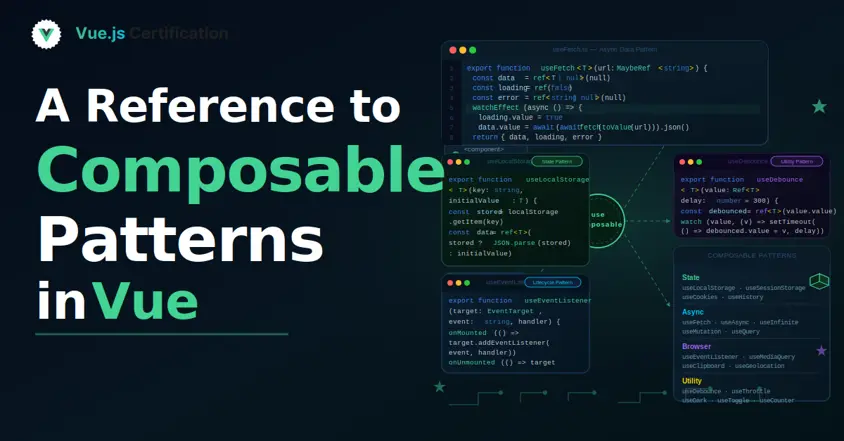
A Reference to Composable Patterns in Vue
A catalog of practical patterns for writing composables that are flexible, predictable, and easy to reuse.
Reza Baar
Sep 23, 2026
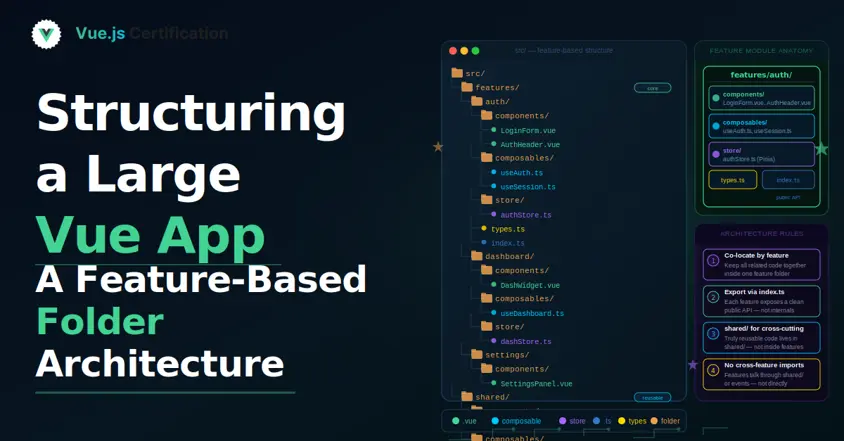
Structuring a Large Vue App: A Feature-Based Folder Architecture
Why the default components/composables/stores split breaks down at scale, and how a feature-first structure fixes it.
Reza Baar
Sep 9, 2026
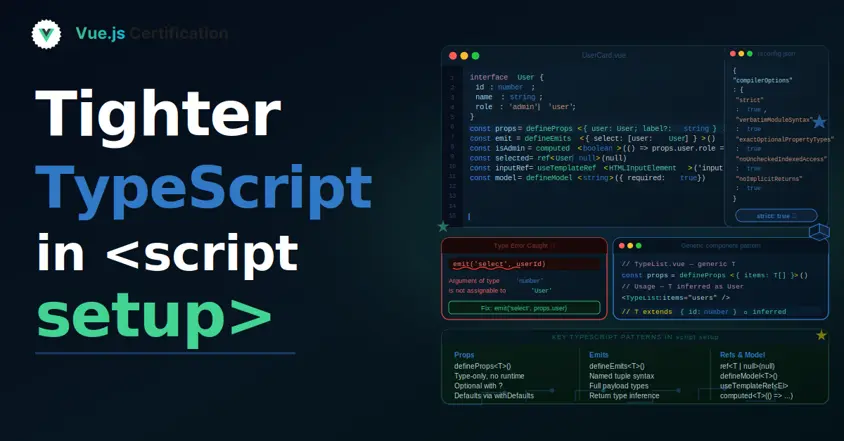
Tighter TypeScript in <script setup>
How Vue sharpened TypeScript support for defineProps, defineEmits, defineModel, and defineSlots, and how to write clearer component contracts.
Reza Baar
Aug 26, 2026